Mastering ERPNext 16: The Complete Guide to Custom App Development
20 min read
By David Muraya • February 24, 2026
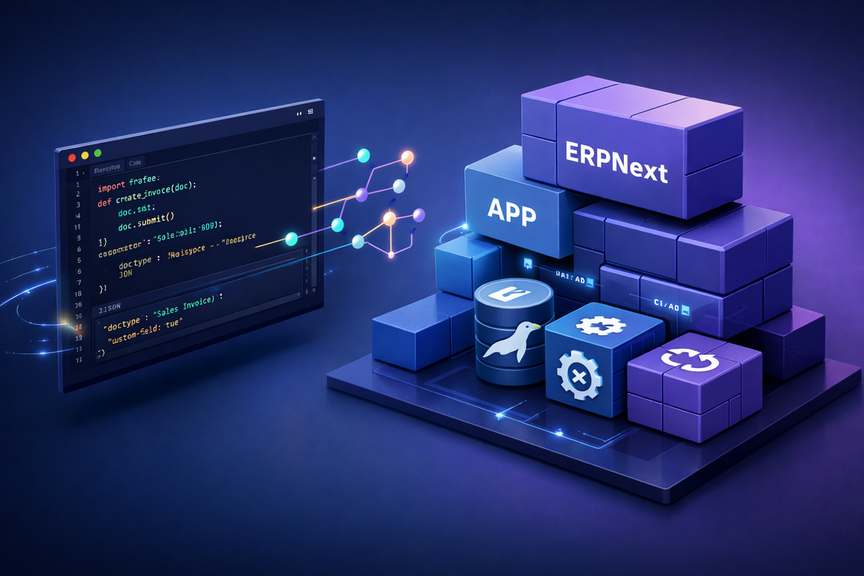
Once you have installed ERPNext 16 on your local machine, the real power of the Frappe Framework comes from creating Custom Apps. A Custom App allows you to extend the functionality of ERPNext without modifying the core code, ensuring that your changes are upgrade-safe, version-controlled, and easily deployable.
This guide outlines the standard workflow for developing, customizing, and maintaining a custom app on top of ERPNext.
Phase 1: Creating Your Custom App
The best practice is to treat each custom app as its own Git repository for easy versioning, collaboration, and deployment.
1. Create a New Custom App
From your bench directory:
cd ~/frappe-bench # Create a new app scaffold (replace 'my_custom_app' with your app name; use lowercase + underscore) bench new-app my_custom_app
Follow the prompts:
- App Title: A human-readable name (e.g., "My Custom App")
- Description: Brief description of your app
- Publisher: Your name or organization
- Email: Your email address
- License: Choose an appropriate license (e.g., MIT or AGPL-3.0)
- GitHub Workflow: Type
yto auto-generate a CI/CD test workflow file. - Branch Name: Press Enter to accept the default (e.g.,
version-16). This sets the initial Git branch to match your Frappe version.
This creates apps/my_custom_app/ with the Frappe app scaffold, including basic structure for doctypes, modules, and hooks.
2. Install the App on Your Site
# From bench root
cd ~/frappe-bench

# Install on your site
bench --site dev.localhost install-app my_custom_app

# Build frontend assets
bench build

# Apply database migrations
bench --site dev.localhost migrate
3. Enable Developer Mode
Developer mode is critical for development. It ensures that schema changes (DocTypes, Custom Fields) are written to your file system as JSON files in your app directory, allowing them to be committed to Git. Without it, changes made in the UI are saved only to the database and will be lost during updates.
To enable it, update your site configuration (sites/dev.localhost/site_config.json):
{
 "developer_mode": 1
}
Or via CLI:
bench --site dev.localhost set-config developer_mode 1
bench --site dev.localhost clear-cache
Phase 2: Version Control with GitHub
All customizations should be version-controlled.
1. Set Up Git Repository
-
Open your app folder in VS Code:
code apps/my_custom_app -
Initialize Git (if not already done) and push to GitHub.
2. .gitignore for Security
Ensure your .gitignore is set up to exclude compiled files and secrets:
__pycache__/
*.pyc
*.pyo
*.pyd
.DS_Store
.idea/
.vscode/
node_modules/
dist/
*.log
env/
.env
*.sqlite3
*.db
Critical: Never commit sites/*/site_config.json or sites/*/private/.
Phase 3: Development Workflow
1. Creating DocTypes (UI-First Approach)
- Go to Developer > DocType > New
- Set Module to a module in your custom app.
- Design your fields, permissions, and other settings.
- Save the DocType.
This will automatically create the JSON and Python files in your app directory because Developer Mode is enabled.
2. Customizing Standard DocTypes (Fixtures)
If you modify standard ERPNext forms (like Customer or Sales Invoice) using the Customize Form tool, these changes are stored in the database. To persist them in your custom app, you need to export them as Fixtures.
-
Open your app's
hooks.pyand add afixtureslist:# apps/my_custom_app/my_custom_app/hooks.py fixtures = [ {"dt": "Print Format", "filters": [["name", "in", ["My Custom Print Format"]]]}, {"dt": "Custom Field", "filters": [["dt", "=", "Quotation"]]} ] -
Export the customizations:
bench --site dev.localhost export-fixtures --app my_custom_appThis writes JSON files to your app's
fixturesfolder.
3. Patches: Persisting Config Changes
Use Patches for automated configuration changes (like creating Account records, System Settings, or bulk data updates) that need to persist across all sites.
-
Create Patch File:
apps/my_custom_app/my_custom_app/patches/create_itl_account.pyimport frappe def execute(): # Check if exists to be idempotent account_name = "ITL" if not frappe.db.exists("Account", {"account_name": account_name}): # Logic to create account doc = frappe.new_doc("Account") doc.update({ ... }) doc.insert() -
Register in
hooks.py:migrate = [ "my_custom_app.my_custom_app.patches.create_itl_account.execute" ] -
Run Migration:
bench migrate
Phase 4: Code Quality & Testing
1. Setup Pre-commit
To ensure code consistency, set up pre-commit:
cd apps/my_custom_app
pip install pre-commit
pre-commit install
This will run tools like ruff (linting), eslint, and prettier before every commit. For more details on Python automation, check out our guide on Running Python Scripts with GitHub Actions.
2. Running Tests
Always run tests before pushing changes.
Application Wide Tests:
bench --site dev.localhost run-tests --app my_custom_app
Module Specific Tests:
bench --site dev.localhost run-tests --module my_custom_app.my_custom_app.tests.test_api_unit
Phase 5: CI/CD & Deployment
Continuous Integration
Create a .github/workflows/ci.yml in your app repository to automate testing.
name: CI

on:
  push:
    branches: [ main, develop ]
  pull_request:
    branches: [ main ]

jobs:
  test:
    runs-on: ubuntu-latest
    services:
      mariadb:
        image: mariadb:11.8
        env:
          MYSQL_ROOT_PASSWORD: root
        ports:
          - 3306:3306
    steps:
      - name: Checkout
        uses: actions/checkout@v4
      - name: Setup Python
        uses: actions/setup-python@v5
        with:
          python-version: '3.14'
      - name: Install Bench & Dependencies
        run: |
          pip install frappe-bench
          bench init --skip-assets --python python3.14 frappe-bench
          cd frappe-bench
          bench get-app erpnext --branch version-16
          bench get-app my_custom_app $GITHUB_WORKSPACE
          bench new-site test_site --mariadb-root-password root --admin-password admin --no-mariadb-socket --db-host 127.0.0.1 --install-app erpnext
          bench --site test_site install-app my_custom_app
          bench --site test_site run-tests --app my_custom_app
Deployment
To deploy your app to a production server, you can follow our production setup guides for Ubuntu with Bench or Docker.
-
New Installation:
cd ~/frappe-bench bench get-app https://github.com/yourusername/my_custom_app --branch main bench --site [site-name] install-app my_custom_app bench migrate -
Updating:
cd ~/frappe-bench/apps/my_custom_app
git pull origin main
cd ~/frappe-bench
bench update --patch
Essential Tools: Print Designer
The Print Designer app is a modern way to create beautiful print formats for your documents without writing HTML/CSS.
bench get-app https://github.com/frappe/print_designer
bench --site dev.localhost install-app print_designer
Developer Cheat Sheet
Developer FAQ
1. How do I access the MariaDB database from a Windows GUI client?
Tools like DBeaver or HeidiSQL installed on Windows can connect to MariaDB inside WSL. Use localhost as the host, port 3306, and the credentials you set during setup.
2. How do I debug Python code?
In VS Code connected to WSL, install the Python extension. You can then add a launch.json configuration to attach the debugger to the running bench process or run specific scripts.
3. What's the difference between code-first and UI-first DocType creation? UI-first is easier for beginners (design in browser, export JSON). Code-first is better for version control (write JSON/Python manually, then migrate). Use UI-first for prototyping, code-first for production features. See the Frappe Framework Documentation for more details.
4. Why are my JavaScript changes not reflecting?
Whenever you modify JavaScript files in your custom app (especially in public/js), you must rebuild the frontend assets. Run bench build --app my_custom_app.
5. How do I handle multiple developers working on the same app? Use Git branches for features. Each developer should have their own WSL bench. Always pull before pushing and resolve conflicts carefully.
6. How do I secure my development environment? Never commit secrets to Git. Use strong passwords for MariaDB. Limit WSL port exposure if needed.
About the Author
About the Author
David Muraya is a Solutions Architect specializing in Python, FastAPI, and Cloud Infrastructure. He is passionate about building scalable, production-ready applications and sharing his knowledge with the developer community. You can connect with him on LinkedIn.
Related Blog Posts
Related Blog Posts
Enjoyed this blog post? Check out these related posts!
Install ERPNext 16 on Windows (WSL): A Complete Development Guide in 2026
The Ultimate Guide to Building Frappe Apps on Windows with WSL 2, and VS Code
Read More...
How to Install ERPNext on Ubuntu 24 Using Bench
A manual, production-ready guide using UV and Python 3.14
Read More...
Run Python Scripts for Free with GitHub Actions: A Complete Guide
Schedule and Automate Python Scripts Without Managing Servers or Cloud Bills
Read More...
How to Install ERPNext on Ubuntu with Docker
A Complete Guide to Deploying ERPNext with Docker Compose, Nginx, and SSL
Read More...
On this page
On this page
Back to Blogs
Contact Me
Contact Me
Have a project in mind? Send me an email at hello@davidmuraya.com and let's bring your ideas to life. I am always available for exciting discussions.