How to Install ERPNext on Ubuntu with Docker
10 min read
By David Muraya • February 8, 2026
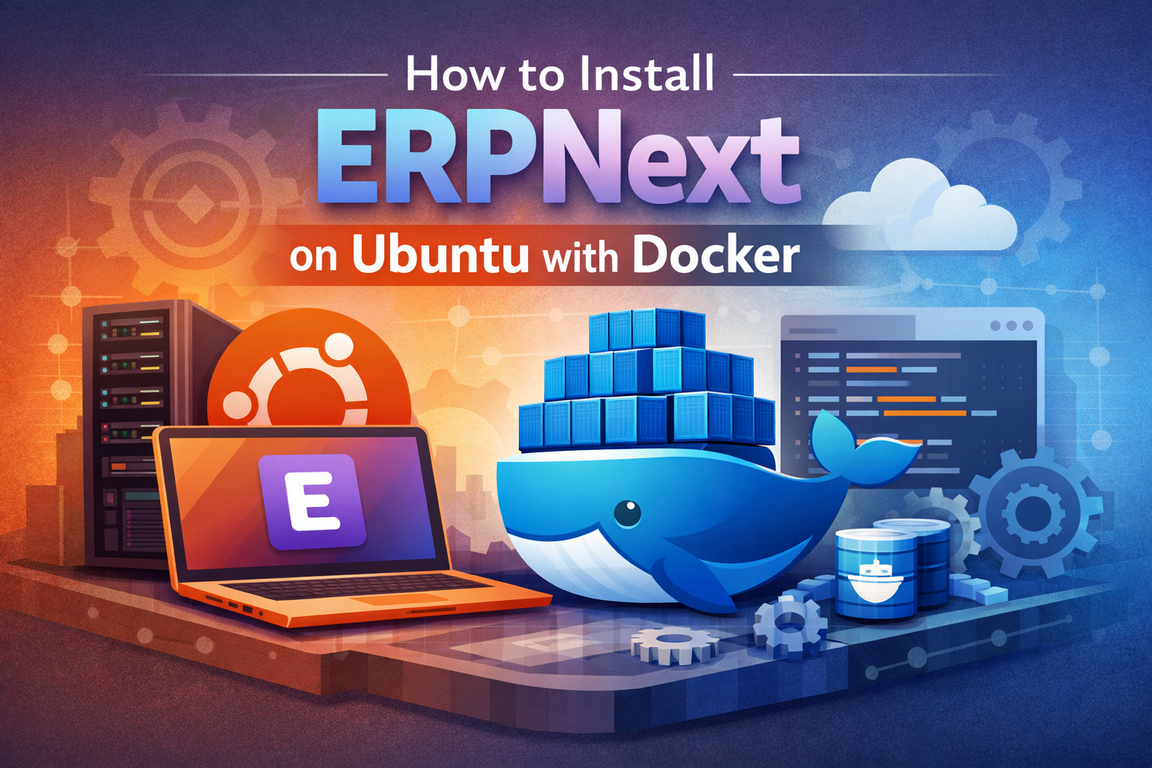
ERPNext is a comprehensive open-source ERP system, but its manual installation can be complex due to its many dependencies. Docker simplifies this process by containerizing the entire stack.
This guide walks you through installing ERPNext on Ubuntu 22.04 using Docker and Docker Compose. We will also set up a Systemd service for persistence, configure Nginx as a reverse proxy, and secure the installation with Let's Encrypt.
1. Set Up the Docker Repository
First, ensure your system has the official Docker repository configurations. This allows you to install the latest version of Docker directly from the source. For more details, refer to the official Docker documentation.
Update your secure repository tools:
sudo apt-get update sudo apt-get install ca-certificates curl gnupg git nano snapd
Add Docker’s official GPG key:
sudo install -m 0755 -d /etc/apt/keyrings
curl -fsSL https://download.docker.com/linux/ubuntu/gpg | sudo gpg --dearmor -o /etc/apt/keyrings/docker.gpg
sudo chmod a+r /etc/apt/keyrings/docker.gpg
Add the Docker repository to your APT sources:
echo "deb [arch=$(dpkg --print-architecture) signed-by=/etc/apt/keyrings/docker.gpg] https://download.docker.com/linux/ubuntu $(. /etc/os-release && echo "$VERSION_CODENAME") stable" | sudo tee /etc/apt/sources.list.d/docker.list > /dev/null
2. Install Docker and Docker Compose
Refresh your package list to include the new Docker source and install the necessary plugins.
sudo apt-get update
sudo apt-get install -y docker-ce docker-ce-cli containerd.io docker-buildx-plugin docker-compose-plugin
This installs the Docker daemon and the Docker Compose plugin, replacing the older standalone docker-compose binary.
Configure Swap (Recommended)
ERPNext and its database containers can be memory-intensive. To prevent out-of-memory crashes, especially on smaller VPS instances, we recommend adding swap space:
sudo fallocate -l 8G /swapfile && \
sudo chmod 600 /swapfile && \
sudo mkswap /swapfile && \
sudo swapon /swapfile && \
echo '/swapfile none swap sw 0 0' | sudo tee -a /etc/fstab
Related: If you are building your own Python applications, check out my guide on Slimmer FastAPI Docker Images with Multi-Stage Builds to optimize your containers.
3. Deploy ERPNext
We will use the official Frappe Docker repository to spin up the ERPNext stack.
Clone the repository and navigate to the directory:
cd /opt
sudo git clone https://github.com/frappe/frappe_docker
cd frappe_docker
Start the containers using the provided pwd.yml (Play with Docker) configuration file:
sudo docker compose -f pwd.yml up -d
Your ERPNext instance should now be running locally on port 8080.
4. Configure Persistence with Systemd
To ensure ERPNext starts automatically on boot or after a crash, create a Systemd service.
Create the service file:
sudo nano /etc/systemd/system/erpnext.service
Paste the following configuration:
[Unit]
Description=ERPNext Docker Compose stack
After=docker.service
Requires=docker.service

[Service]
Type=oneshot
WorkingDirectory=/opt/frappe_docker
ExecStart=/usr/bin/docker compose -f pwd.yml up -d
ExecStop=/usr/bin/docker compose -f pwd.yml down
RemainAfterExit=yes

[Install]
WantedBy=multi-user.target
Enable and start the service:
sudo systemctl daemon-reload
sudo systemctl enable erpnext.service
sudo systemctl start erpnext.service
5. Set Up Nginx Reverse Proxy
Running ERPNext on a bare port isn't suitable for production. We'll use Nginx to proxy requests from port 80 to our Docker container.
Tip: If you are deploying on Google Cloud, you might also be interested in Setting Up a Custom Domain for Cloud Run.
Install Nginx:
sudo apt update
sudo apt install nginx -y
sudo systemctl enable --now nginx
Create an Nginx configuration file for ERPNext. Replace erp.example.com with your actual domain name:
sudo nano /etc/nginx/sites-available/erpnext.conf
Add the following block:
server {
    listen 80;
    server_name erp.example.com;

    location / {
        proxy_pass http://localhost:8080;
        proxy_set_header Host $host;
        proxy_set_header X-Real-IP $remote_addr;
        proxy_set_header X-Forwarded-For $proxy_add_x_forwarded_for;
        proxy_set_header X-Forwarded-Proto $scheme;
    }
}
Enable the configuration and reload Nginx:
sudo ln -s /etc/nginx/sites-available/erpnext.conf /etc/nginx/sites-enabled/
sudo nginx -t
sudo systemctl reload nginx
6. Secure with SSL (Let's Encrypt)
Finally, enable HTTPS using Certbot.
Install Certbot via Snap (recommended for Ubuntu):
sudo snap install core
sudo snap refresh core
sudo snap install --classic certbot
sudo ln -s /snap/bin/certbot /usr/bin/certbot
Run Certbot to obtain and install the certificate automatically:
sudo certbot --nginx
Follow the prompts to select your domain. Certbot will automatically update your Nginx configuration to serve ERPNext over HTTPS.
FAQ
1. Why use the pwd.yml file?
The pwd.yml file in the frappe_docker repository is a pre-configured Docker Compose file designed for quick setups ("Play with Docker"). For complex production needs, you might want to create a custom compose.yml that overrides specific settings.
2. How do I update ERPNext?
To update, navigate to your /opt/frappe_docker directory, pull the latest images, and restart the containers:
sudo docker compose -f pwd.yml pull
sudo docker compose -f pwd.yml up -d
3. I see a "Bad Gateway" error.
Check if your Docker containers are running (docker ps) and ensure Nginx is pointing to the correct port (8080 in this guide). Also verify that the erpnext.service is active.
About the Author
About the Author
David Muraya is a Solutions Architect specializing in Python, FastAPI, and Cloud Infrastructure. He is passionate about building scalable, production-ready applications and sharing his knowledge with the developer community. You can connect with him on LinkedIn.
Related Blog Posts
Related Blog Posts
Enjoyed this blog post? Check out these related posts!

How to Install ERPNext on Ubuntu 24 Using Bench
A manual, production-ready guide using UV and Python 3.14
Read More...
Install ERPNext 16 on Windows (WSL): A Complete Development Guide in 2026
The Ultimate Guide to Building Frappe Apps on Windows with WSL 2, and VS Code
Read More...
Mastering ERPNext 16 Development: The Complete Guide to Building Custom Apps
Build, Test, Deploy: A Modern CI/CD Pipeline for ERPNext Developers
Read More...
Run Python Scripts for Free with GitHub Actions: A Complete Guide
Schedule and Automate Python Scripts Without Managing Servers or Cloud Bills
Read More...
Contact Me
Contact Me
Have a project in mind? Send me an email at hello@davidmuraya.com and let's bring your ideas to life. I am always available for exciting discussions.