Run Python Scripts for Free with GitHub Actions: A Complete Guide
6 min read
By David Muraya • December 18, 2025
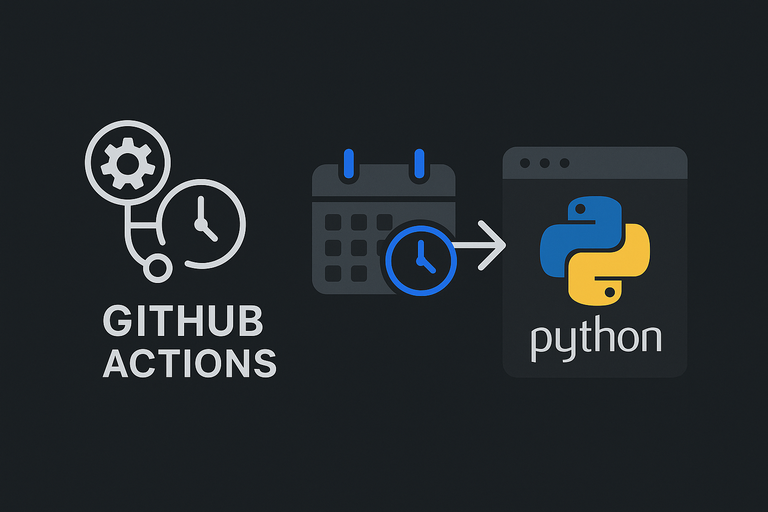
You don't always need a cloud provider like Google Cloud or AWS to run a simple Python script. If your code is already hosted on GitHub, you can use GitHub Actions to run it for you.
GitHub Actions is mostly known for CI/CD - testing and deploying code when you push changes. But it also has a feature that lets you run workflows on a schedule, just like a cron job. This is perfect for scrapers, bots, or data cleanup scripts that need to run a few times a day.
This guide shows you how to set up a GitHub Actions workflow to run a Python script automatically.
The Workflow File
GitHub Actions looks for configuration files in a specific directory in your repository: .github/workflows. These files are written in YAML.
To get started, create a file named .github/workflows/scraper.yml (or any name you like) and paste in the configuration below. This example runs a scraper script four times a day.
name: Scraper Cron on: # Schedule to run 4 times a day (UTC times) # 00:00, 06:00, 12:00, 18:00 schedule: - cron: '0 0,6,12,18 * * *' # Allows you to manually trigger the workflow from the Actions tab for testing workflow_dispatch: jobs: run-scraper: runs-on: ubuntu-latest environment: development steps: - name: Checkout Code uses: actions/checkout@v4 - name: Set up Python uses: actions/setup-python@v6 with: # Use a stable version like 3.12 or 3.13 python-version: '3.13' # We install dependencies directly here. # For larger projects, use a requirements.txt file. - name: Install Dependencies run: | python -m pip install --upgrade pip pip install bs4 aiohttp python-dotenv - name: Run Scraper Script env: # Mapping Secrets from GitHub to Environment Variables API_SECRET: ${{ secrets.API_SECRET }} # Configuration Variables API_BASE: "https://my-website-to-be-updated.com" # Pointing to the specific path of your script run: python src/python_scripts/scraper_gcp.py
Breaking Down the Configuration
Here is what is happening in that file.
1. The Schedule (on: schedule)
The on section tells GitHub when to run the workflow. We use the schedule event with a cron syntax.
The line cron: '0 0,6,12,18 * * *' means "Run at minute 0 of the 0th, 6th, 12th, and 18th hour."
Note: GitHub Actions schedules are in UTC. You will need to convert your local time to UTC to get the schedule right.
We also added workflow_dispatch. This is important. It adds a button in the GitHub UI that lets you run the script manually. Without it, you have to wait for the schedule to trigger to see if your code works.
2. The Environment (runs-on)
runs-on: ubuntu-latest tells GitHub to provision a fresh Linux virtual machine for this job. This VM is ephemeral. It is created when the job starts and destroyed when it finishes. This means you cannot save files to the disk and expect them to be there next time. If your script saves data, it needs to send it to a database or an external storage service.
3. The Steps
The steps run sequentially:
- Checkout Code: Uses the official
actions/checkoutaction to pull your repository's code onto the VM. - Set up Python: Uses
actions/setup-pythonto install the specific version of Python you need. - Install Dependencies: Runs
pip install. In the example, we list packages inline. For production apps, I recommend using arequirements.txtfile (pip install -r requirements.txt) to ensure you are using the exact same versions locally and in the cloud. - Run Scraper Script: Finally, it executes your Python script.
Speed Up Dependency Installation with uv
If you want to make your workflow faster, you can replace pip with uv, a blazingly fast Python package installer written in Rust. It can install dependencies up to 10-100x faster than pip.
Here's how to use it in your workflow:
name: Weather Update Cron

on:
  schedule:
    - cron: '0 3,15 * * *'
  workflow_dispatch:

jobs:
  run-weather-update:
    runs-on: ubuntu-latest
    environment: development

    steps:
      - name: Checkout Code
        uses: actions/checkout@v4

      - name: Set up Python
        uses: actions/setup-python@v6
        with:
          python-version: '3.13'

      # Install uv (much faster than pip)
      - name: Install uv
        uses: astral-sh/setup-uv@v7

      # Install dependencies using uv (much faster than pip)
      - name: Install Dependencies
        run: uv pip install --system aiohttp python-dotenv

      - name: Run Weather Update Script
        env:
          API_SECRET: ${{ secrets.API_SECRET }}
          WEATHER_UPDATE_SECRET: ${{ secrets.WEATHER_UPDATE_SECRET }}
          API_BASE: "https://sgrchecker.com"
        run: python src/python_scripts/update_weather.py
In my workflow, switching from pip to uv reduced dependency installation time from 6 seconds to just 1 second. That might not sound like much, but it adds up when you're running workflows frequently or have larger dependency lists.
To use uv:
- Add the
astral-sh/setup-uv@v7action to installuv. - Replace
pip installwithuv pip install --system.
The --system flag tells uv to install packages into the system Python environment, which is what you want in a CI environment.
Handling Secrets
Your script likely needs API keys or database passwords. Never commit these to your code.
In the workflow file, you see this block:
env:
  API_SECRET: ${{ secrets.API_SECRET }}
This tells GitHub to take a value stored in the repository's "Secrets" and inject it as an environment variable named API_SECRET.
To set these up:
- Go to your GitHub repository.
- Click Settings.
- On the left sidebar, click Secrets and variables > Actions.
- Click New repository secret.
- Add the name (e.g.,
API_SECRET) and the value.
Now your script can access os.environ["API_SECRET"] safely.
When to Use This vs. Cloud Functions
I previously wrote about running scripts on Google Cloud Functions and scheduling them with Cloud Scheduler. So, which one should you use?
Use GitHub Actions if:
- Your script is a "batch" job (runs once in a while).
- You want to keep everything in one place (code and infrastructure).
- You don't want to configure a cloud provider account and billing.
Use Cloud Functions if:
- You need an HTTP endpoint (a web API).
- Your script needs to run instantly in response to a user action.
- You need complex scaling or networking.
Frequently Asked Questions (FAQ)
1. Is GitHub Actions free? For public repositories, yes, it is free. For private repositories, GitHub provides a generous amount of free minutes per month (usually 2,000 minutes). Unless your script runs constantly or takes hours to finish, you likely won't hit the limit.
2. Can I save files generated by the script? Not directly to the folder. The environment is destroyed after the run. If you need to save a CSV or JSON file, you have two options:
- Artifacts: Use the
actions/upload-artifactaction to save files for download later. - External Storage: Upload the file to AWS S3 or Google Cloud Storage.
3. Why didn't my scheduled job run at the exact time? GitHub warns that scheduled events can be delayed during periods of high load. It is usually reliable, but don't use it for tasks that require second-level precision.
4. Can I use a custom Docker image?
Yes. Instead of runs-on: ubuntu-latest, you can specify a container image. This is useful if your script has complex non-Python dependencies.
External Resources
- GitHub Actions Documentation
- Workflow Syntax for GitHub Actions
- uv: An extremely fast Python package installer
- Crontab Guru - A handy tool for calculating cron schedules.
- Python Setup Action
About the Author
About the Author
David Muraya is a Solutions Architect specializing in Python, FastAPI, and Cloud Infrastructure. He is passionate about building scalable, production-ready applications and sharing his knowledge with the developer community. You can connect with him on LinkedIn.
Related Blog Posts
Related Blog Posts
Enjoyed this blog post? Check out these related posts!
Stop Running Python Scripts Manually: A Guide to Google Cloud Scheduler
A Step-by-Step Guide to Creating Cron Jobs for Your Cloud Functions.
Read More...

Mastering ERPNext 16 Development: The Complete Guide to Building Custom Apps
Build, Test, Deploy: A Modern CI/CD Pipeline for ERPNext Developers
Read More...
How to Run Python Scripts in the Cloud with Google Cloud Functions
Deploy Python Scripts to the Cloud: Secure, Automate, and Scale Instantly
Read More...
Install ERPNext 16 on Windows (WSL): A Complete Development Guide in 2026
The Ultimate Guide to Building Frappe Apps on Windows with WSL 2, and VS Code
Read More...
Contact Me
Contact Me
Have a project in mind? Send me an email at hello@davidmuraya.com and let's bring your ideas to life. I am always available for exciting discussions.